

How To Setup Forex EA On MT4 | Step-by-Step Guide
If you are searching for how to setup Forex EA on MT4 or how to install a Forex robot in MetaTrader 4, this complete guide will walk you through the process step-by-step.
MetaTrader 4 (MT4) is one of the most widely used trading platforms for automated trading. Traders use it to run Expert Advisors (EAs) that execute trading strategies automatically without manual intervention.
Whether you downloaded a free Forex EA, purchased a premium robot, or received a custom trading bot, learning how to install and run it correctly is important for safe trading.
This beginner-friendly guide explains everything from installation to running the EA properly.
What Is a Forex EA in MT4?
A Forex EA (Expert Advisor) is an automated trading program designed to run inside the MT4 platform.
It works using a pre-programmed trading strategy and can perform several trading tasks automatically.
A Forex EA can:
- Open trades automatically
- Close trades automatically
- Manage stop loss and take profit
- Analyze price movements and indicators
- Execute trading strategies 24/7
Because the system works automatically, many traders use EAs to remove emotional trading and follow consistent strategies.
However, the EA must be installed and configured properly for it to work correctly.
Step 1: Install MetaTrader 4
Before setting up your EA, you must first install MetaTrader 4.
Follow these steps:
- Download MT4 from your Forex broker
- Install the platform on your computer
- Open MT4 and log into your trading account
- Choose Demo account first for testing
Testing on a demo account helps you understand how the EA behaves without risking real money.
Tip: Many professional traders test a new robot for 1–2 weeks on demo before using it on a live account.
Join Our Telegram Channel For Updates
Step 2: Install the Forex EA in MT4
Once MT4 is installed, the next step is placing the EA file in the correct folder.
Follow these steps carefully.
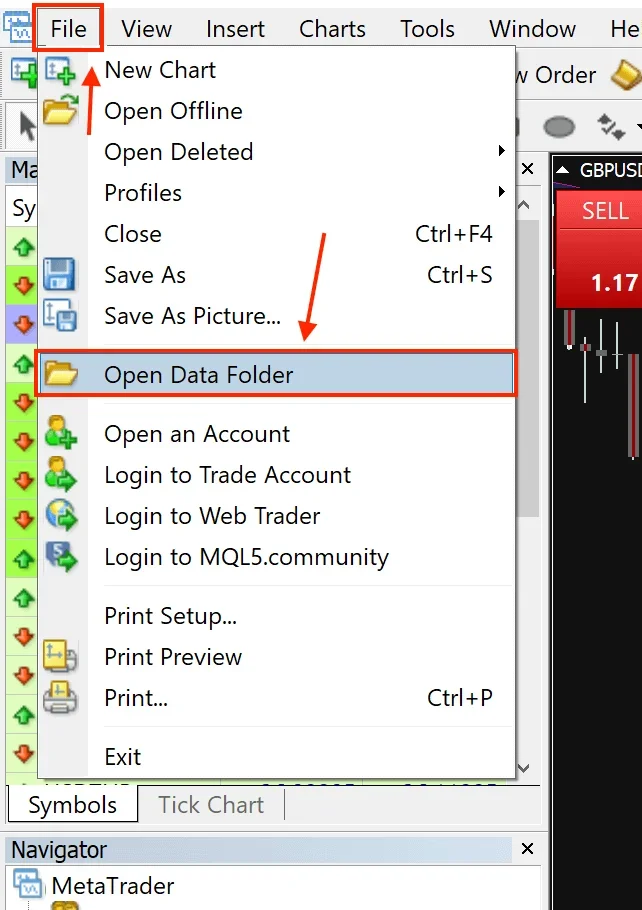
- Open MetaTrader 4
- Click File → Open Data Folder
- Open the MQL4 folder
- Open the Experts folder
- Copy and paste your EA file
EA files usually come in these formats:
- .ex4 (compiled EA file)
- .mq4 (source code file)
After pasting the file:
- Restart MetaTrader 4
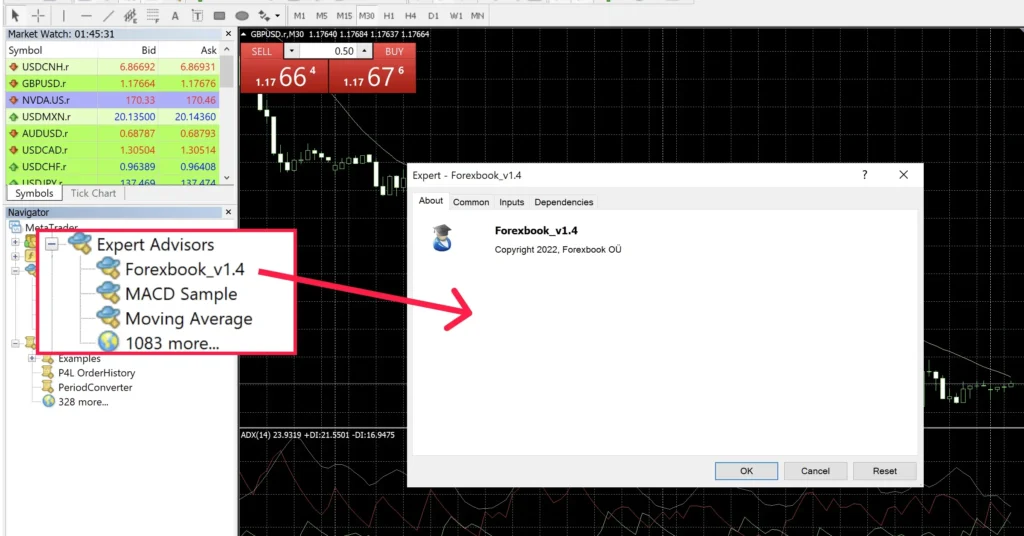
When MT4 restarts:
- Open Navigator panel
- Expand Expert Advisors
Your EA should now appear in the list.
Step 3: Attach the EA to a Chart
Now you need to connect the EA to the correct trading chart.
Follow these steps:
- Open the currency pair or asset the EA supports
- Example: EURUSD, GBPUSD, XAUUSD (Gold)
- Example: EURUSD, GBPUSD, XAUUSD (Gold)
- Select the recommended timeframe
- Example: M1, M5, M15, H1
- Example: M1, M5, M15, H1
- Drag the EA from Navigator to the chart
Once attached, the EA settings window will open.
Here you can adjust lot size, risk level, and other settings if needed.
Step 4: Enable AutoTrading in MT4
The EA will not trade unless AutoTrading is enabled.
To activate the robot:
- Click AutoTrading on the MT4 toolbar
- The button must turn GREEN
Then open the EA settings window and check:
✔ Allow Live Trading
✔ Allow DLL Imports (if required by the EA)
If everything is correct, you will see a smiley face icon in the top-right corner of the chart.
This means your EA is running correctly.
Step 5: Load the EA Set File (Recommended)
Many professional EAs include a .set file.
This file contains optimized settings for the robot.
To load it:
- Open EA settings
- Click Load
- Select the .set file
Using a set file is helpful because it provides:
- Tested configuration
- Balanced risk management
- Optimized trading parameters
- Better drawdown control
However, traders should still test the settings on demo first.
Step 6: Use a VPS for 24/7 Trading
Forex EAs only work when MetaTrader 4 is running.
If your computer shuts down or internet disconnects, the EA stops trading.
This is why many professional traders use a VPS (Virtual Private Server).
Benefits of using a VPS include:
- 24/7 platform uptime
- Faster trade execution
- Stable internet connection
- Reduced platform interruptions
Running your EA on a VPS helps ensure consistent automated trading performance.
Common MT4 EA Problems & Solutions
Sometimes traders install the EA correctly but it still does not trade.
Here are common issues and simple fixes.
EA Not Taking Trades
Check the following:
✔ AutoTrading enabled
✔ Correct currency pair
✔ Correct timeframe
✔ Lot size settings valid
✔ Check Journal tab for errors
EA Not Showing in MT4
If the EA does not appear in Navigator:
✔ Restart MT4
✔ Confirm file location (MQL4 → Experts)
✔ Refresh Navigator panel
Smiley Face Not Showing
If you see a sad face or no icon:
✔ Enable AutoTrading
✔ Allow live trading in EA settings
✔ Check broker trading permissions
Additional Tips for Better EA Performance
Setting up an EA correctly is only the first step. To improve results, traders should also consider these practices.
1. Start with Low Risk
Use a small lot size such as 0.01 while testing.
2. Avoid Major News Events
Some EAs perform poorly during high-volatility news releases.
3. Monitor Spread Conditions
High spreads can affect robot performance, especially for scalping EAs.
4. Track EA Performance Weekly
Check metrics such as:
- Win rate
- Drawdown
- Trade frequency
- Profit factor
Regular monitoring helps traders decide whether adjustments are needed.
Useful Links
DOWNLOAD EA for FREE: Become VIP Member
Contact us via Telegram: @FXVIPShop_Support